MT5 နှင့် Account Credentials
Protected credentials ကိုရှာခြင်း၊ server မှန်ရွေးခြင်းနှင့် MT5 login ပြဿနာများကို ဖြေရှင်းခြင်း။
Trading credentials သည် BFT website password နှင့် သီးခြားဖြစ်သည်။ Trading password ကို support ticket၊ chat၊ screenshot သို့မဟုတ် screen recording တွင် လုံးဝမပို့ပါနှင့်။
မစတင်မီ
Payment အတည်ပြုပြီး account delivery ရသည့်အထိ စောင့်ပါ။ MetaTrader 5 ကို official source မှ install လုပ်ပါ။ မှန်ကန်သော BFT website account ဖြင့် login လုပ်ထားကြောင်း စစ်ပါ။
အဆင့်များ
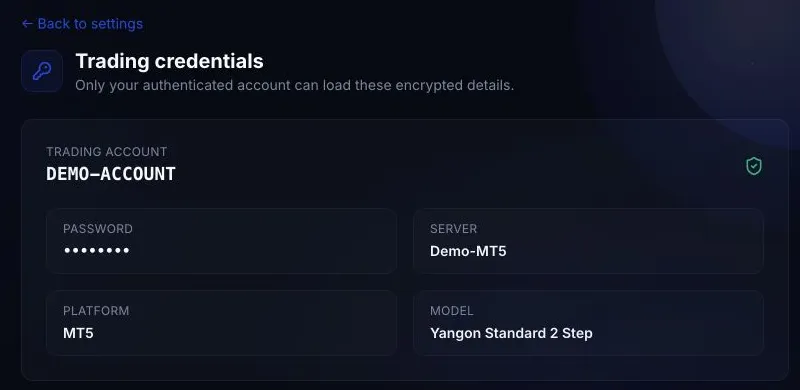
Trading credentials ကိုရွေးပါ။ Protected page တွင် Trading account၊ Password၊ Server၊ Platform နှင့် Model ကိုပြသည်။
သင့် device အတွက် MT5 account sign-in ကိုဖွင့်ပါ။
BFT တွင်ပြသော server အတိအကျကို ရှာရွေးပါ။ Trade မလုပ်မီ account ချိတ်ဆက်ကြောင်း အတည်ပြုပါ။
အောင်မြင်သည့်အခြေအနေ
MT5 တွင် simulated account အတွက် connection indicator၊ မျှော်မှန်းထားသော starting balance နှင့် enabled symbols ပြသည်။ Account number သည် BFT နှင့်ကိုက်ညီသည်။ ယခင် phase connection save ဖြစ်နေခြင်းတစ်ခုတည်း မလုံလောက်ပါ။
ဖြစ်လေ့ရှိသောအမှားများ
- Numeric trading account အစား email ထည့်ခြင်း။
- BFT website password သုံးခြင်း။
- နာမည်ဆင်တူ server ရွေးခြင်း။
- Password ရှေ့ သို့မဟုတ် နောက်တွင် space ပါသွားခြင်း။
- Phase 2 သို့မဟုတ် simulated funded account ရပြီးနောက် Phase 1 credential သုံးခြင်း။
နောက်ထပ်ဘာဖြစ်မလဲ
Rule နှင့်ကိုက်ညီသော simulated trade သာပြုလုပ်ပြီး Dashboard နှင့် metrics ကိုစစ်ပါ။ Delivery ပြီးသော်လည်း Unable to decrypt သို့မဟုတ် credential record မရှိပါက reissue အတွက် ticket ဖွင့်ပါ။